Pyramid's AI-driven Auto Translate function automatically translates dynamic and static text into the application language configured for each user. Translations occur when a user whose source language differs from their application language builds a publication. Enable this feature to ensure the text in your publication is correct for users operating in different application languages.
Each user selects the application language that they want to use for Pyramid in their User Info panel.
- Click here for more information about User Info settings
Warning: When using LLMs, your assets are generated using public domain algorithms. This can produce erroneous and inconsistent or random results. Use at your own risk.
Automatically Translating Text
The Auto Translate function translates static and dynamic text strings added to the publication. This includes:
- Static text.
- Dynamic text.
#PageInsightstext fields.
Any other text is not translated. This includes cases where dynamic text is translated but the accompanying static text is not, even though static and dynamic text are typically both translated.
 Example: Auto Translate
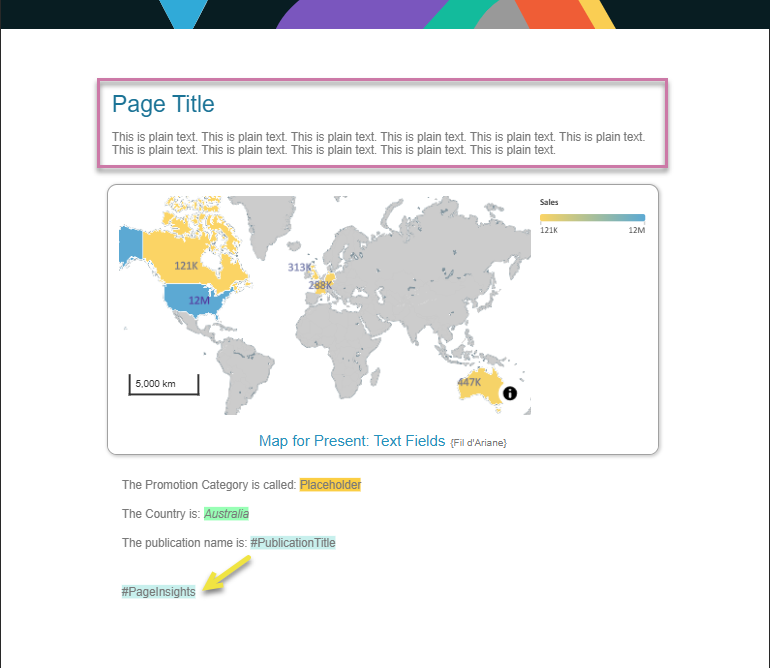
The following images show how Auto Translate affects different types of text. In this example, the publication is authored in English and the user's application language is French:
English Input - Note that the variables are shown with Highlights here. This allows you to identify the placeholders, dynamic text fields, and variable text fields.
French Output (PDF) - Note that the Country slicer was set to Germany and the Promotion Category slicer was set to Reseller at build time.
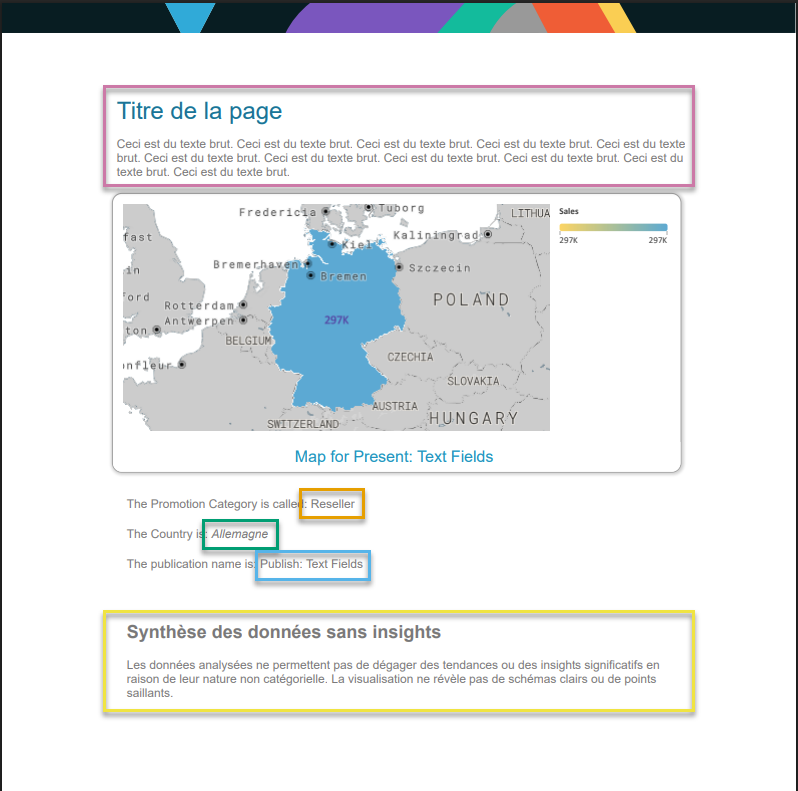
- The title and block of static text (purple highlight above) are both translated into French.
- The dynamic placeholder (orange) and its accompanying static sentence are not translated.
- The dynamic text (green) is translated into French but its accompanying static sentence is not.
- The variable text field (blue) and its accompanying static sentence are not translated.
- The text field that contains only the
#PageInsightsvariable is generated in French.
Prerequisites
You can only make use of this functionality if your administrator has selected to Enable Generative AI in the AI Settings page of the Admin Console. Otherwise, the function is not available for use.
Enable Auto Translate
From the Design ribbon:

- Click Auto Translate (green arrow above).
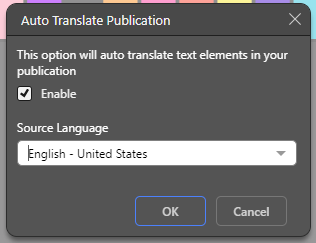
- Enable the Auto Translation:
- Select the Enable checkbox.
- Select a Source Language from the dropdown list. This is the language that the text is currently in, and selecting this option helps the underlying LLM to perform the translation into the user's application language.
- Click OK.
The Auto Translate dialog opens.
The dialog closes and Auto Translation is enabled.
The next time a user generates an output publication, Pyramid automatically translates any translatable text into the building user's application language.
Step 2: Testing the translation
You can verify that the correct replacements are applied at build time by changing your Application Language and then clicking Run or pressing F2 to generate a new output (for example, a PDF). Translations use the language settings of the user account running the build, with both static and dynamic text updated accordingly.